
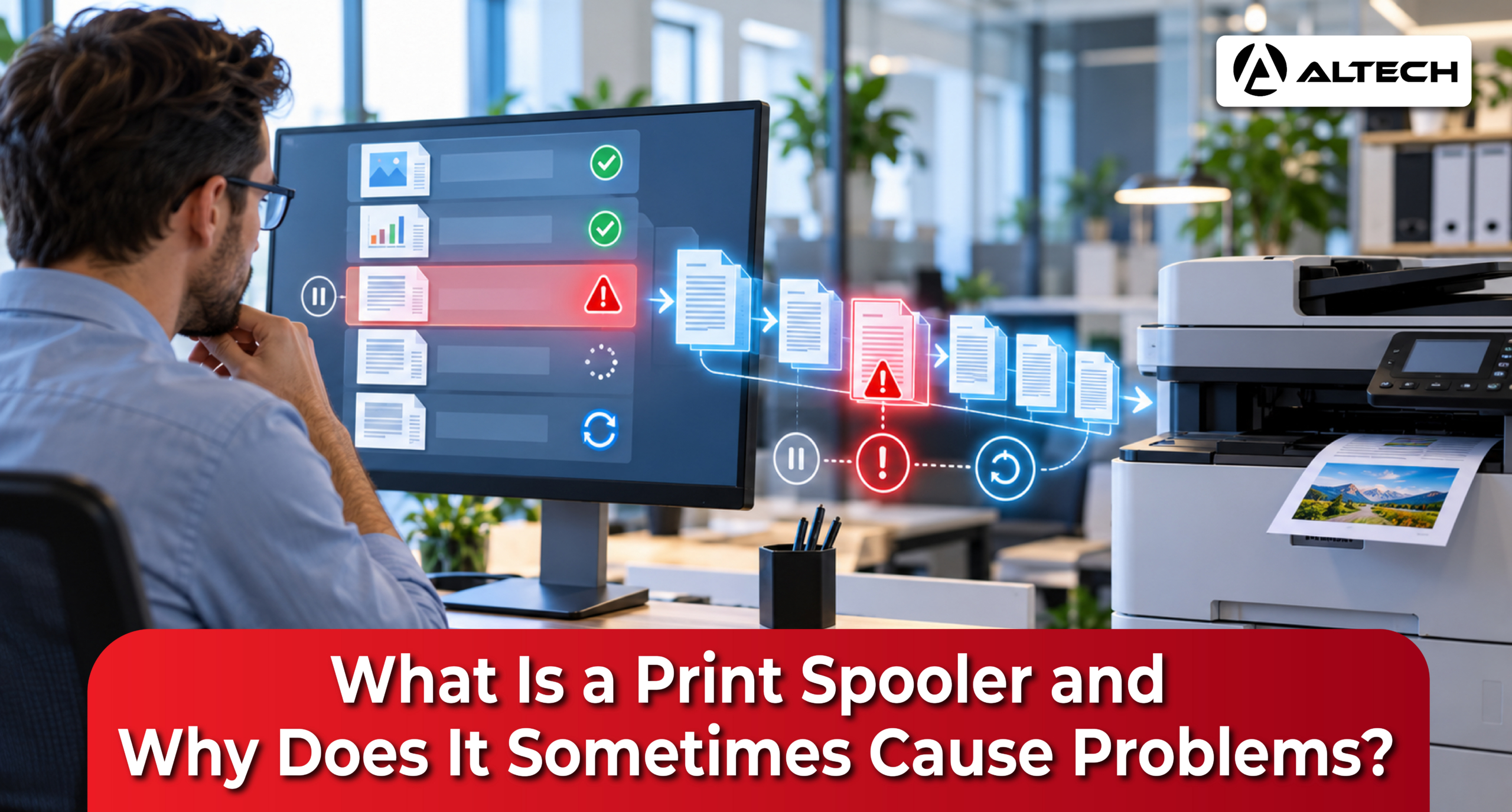
A print spooler is the software on your computer that receives print jobs, holds them for a moment, and sends them to the printer in the right order. It works quietly in the background, so you can carry on working instead of waiting for every page to come out. In Windows, it is called the Print Spooler service.
Most people only notice it when something goes wrong: a document stuck on “Printing”, a cancelled job that will not disappear, or a message saying the spooler service is not running.
The good news is that these problems rarely mean the printer is broken. They usually come from a damaged print job, a printer driver problem, a connection issue, or the spooler service itself. This guide explains what the spooler does, why it causes trouble, and how to fix it safely.
What Does a Print Spooler Actually Do?
Think of the print spooler as a dispatch desk. Your application hands over a document, and the spooler takes care of the rest: it loads the right printer software, stores the job, and schedules when it goes to the printer. Microsoft describes its main jobs as loading drivers, spooling (temporarily storing) print data, and scheduling jobs.
Three terms are easy to mix up:
- Print job: one printing request, such as two copies of a report.
- Print queue: the waiting list of jobs for a printer. This is what you see when you open a printer’s queue on your computer.
- Print spooler: the background software that manages those jobs.
So the queue is not the spooler. The queue is the list; the spooler is what manages it.
How Does a Document Get From Your Computer to the Printer?
The exact path varies by printer and software, but on Windows it usually follows four stages:
- You click Print. Your application sends the document along with your settings, such as paper size, orientation, and number of copies.
- Windows prepares the job. The printer driver, the software that lets your computer talk to a specific printer, converts the document into data the printer understands.
- The spooler stores and schedules it. The print data is saved to temporary files, and the spooler holds the job until it is its turn.
- The job reaches the printer. The data travels to the printer, either directly or through a shared print server. In many offices, a job passes through a queue on your computer and another queue on the server.
This is why clicking Print does not guarantee paper will come out straight away. Your document has entered a chain with several points where it can stop.
Why Do We Need a Print Spooler?
Without a spooler, your computer would have to wait for the printer to finish before you could do anything else.
- It handles the speed difference. Your computer prepares documents far faster than a printer can feed paper and apply toner. The spooler gives the job somewhere to wait while the printer catches up.
- It makes shared printers work. Several people can send jobs to the same office printer at once, and the spooler lines them up so nobody has to wait for the previous person to finish.
- It lets you see and control what is waiting. The queue shows pending documents and lets you cancel ones you no longer need.
Why Does the Print Spooler Cause Problems?
The spooler sits in the middle of your applications, printer drivers, stored print data, and printer connection. A fault anywhere along that chain can look like a spooler problem. The four most common causes are below.
1. A stuck or damaged print job
Sometimes a job enters the queue but never finishes or cancels properly. It sits there marked “Printing” or “Deleting”, and every other document waits behind it. Microsoft’s fix is to cancel the queued jobs first and, if that fails, clear the stored spool files.
Remember: the document you saved and the job in the queue are two different things. Removing a print job never deletes your original report or spreadsheet.
2. An outdated or incompatible printer driver
The spooler depends on the printer driver to process jobs correctly. A faulty, old, or mismatched driver can stop printing or cause the spooler service to crash repeatedly. Microsoft recommends removing unnecessary, old, or duplicate drivers and installing the latest driver from the printer manufacturer.
If the same problem returns every time you restart the spooler, the driver is the most likely cause.
3. The printer or connection is unavailable
The queue can be working perfectly while the printer itself cannot receive or finish the job: it may be offline, out of paper, jammed, or unreachable on the network. In offices, the delay could be between your computer and the print server, or between the server and the printer. Microsoft recommends checking each of these stages separately.
So a job waiting in the queue does not automatically mean the spooler is at fault.
4. The spooler service has stopped
If the Print Spooler service is not running, Windows cannot print at all. Restarting it often fixes the problem, but if it keeps stopping, something else, usually a driver, is causing it.
How Can You Tell It Is a Spooler Problem?
Common warning signs include:
- Jobs sit in the queue and never move.
- Cancelled documents stay visible.
- Windows says the Print Spooler service is not running.
- Printing works after a restart but fails again later.
Look at the pattern, not just the message. If one particular document keeps getting stuck while a simple test page prints fine, the problem is that document or the application it came from. If every application and printer on the same computer is affected, the problem is in Windows’ printing components. Comparing what works and what does not helps you find exactly where printing stops.
How to Fix a Stuck Print Spooler Safely
These steps are for Windows 11. On a work computer or shared print server, check with your IT team first before changing services or deleting files.
Step 1: Check the printer
Make sure the printer is switched on, connected, and not showing an error. Check for paper jams and empty trays. There is no point troubleshooting your computer if the printer simply cannot continue.
Step 2: Cancel stuck jobs in the queue
- Open Settings.
- Select Bluetooth & devices.
- Choose Printers & scanners.
- Select the affected printer.
- Open its print queue.
- Cancel the stuck or unwanted jobs.
Tip: do not keep pressing Print while a document is stuck. Every extra request joins the queue and may print later, leaving you with unwanted duplicates.
Step 3: Restart the Print Spooler service
If cancelling does not work:
- Press Windows key + R.
- Type services.msc and press Enter.
- Find Print Spooler in the list.
- Right-click it and select Restart.
This fixes many temporary problems, but it may not remove a badly damaged job or repair a faulty driver. On a shared print server, restarting the service interrupts printing for everyone who uses it.
Step 4: Clear the spool folder if jobs are still stuck
Microsoft recommends this only when jobs remain stuck after the earlier steps:
- In Services, right-click Print Spooler and select Stop.
- Open File Explorer.
- Go to C:\Windows\System32\spool\PRINTERS.
- Delete the files inside this folder. Do not delete the folder itself.
- Go back to Services and Start the Print Spooler.
This removes every pending job stored on that computer, possibly for several printers, so make sure those jobs can be resent. You may need administrator permission. Do not try to get around workplace access controls.
Step 5: Test before resending everything
Print one short document first. If it works, resend your other documents a few at a time. If the service stops again, or one document keeps causing the problem, look for the underlying cause. Updating the printer driver is the recommended next step.
How to Prevent Spooler Problems From Coming Back
Prevention is about keeping the printing chain healthy, not repeatedly clearing the symptoms.
- Keep drivers current. Use the correct driver for your printer and version of Windows, and download updates from the printer manufacturer.
- Remove old printers and drivers. Uninstall printers you no longer use and any duplicate or outdated drivers.
- Record what happens when it fails. In an office, note the printer name, the application, the document type, the error message, and whether other people are affected. This helps your IT team tell a single-computer problem from a server or printer problem.
The Bottom Line
The print spooler is the coordinator that keeps printing organised. It stores and schedules your print jobs and helps your software talk to the printer.
When something goes wrong, work through it in order: check the printer, cancel stuck jobs, restart the service, and only clear the spool folder if jobs will not go away. If the problem keeps returning, look at the printer driver and the connection rather than treating every restart as a permanent fix.
For a free consultation contact us at https://wa.me/971569981942 or call us at +971 56 998 1942