
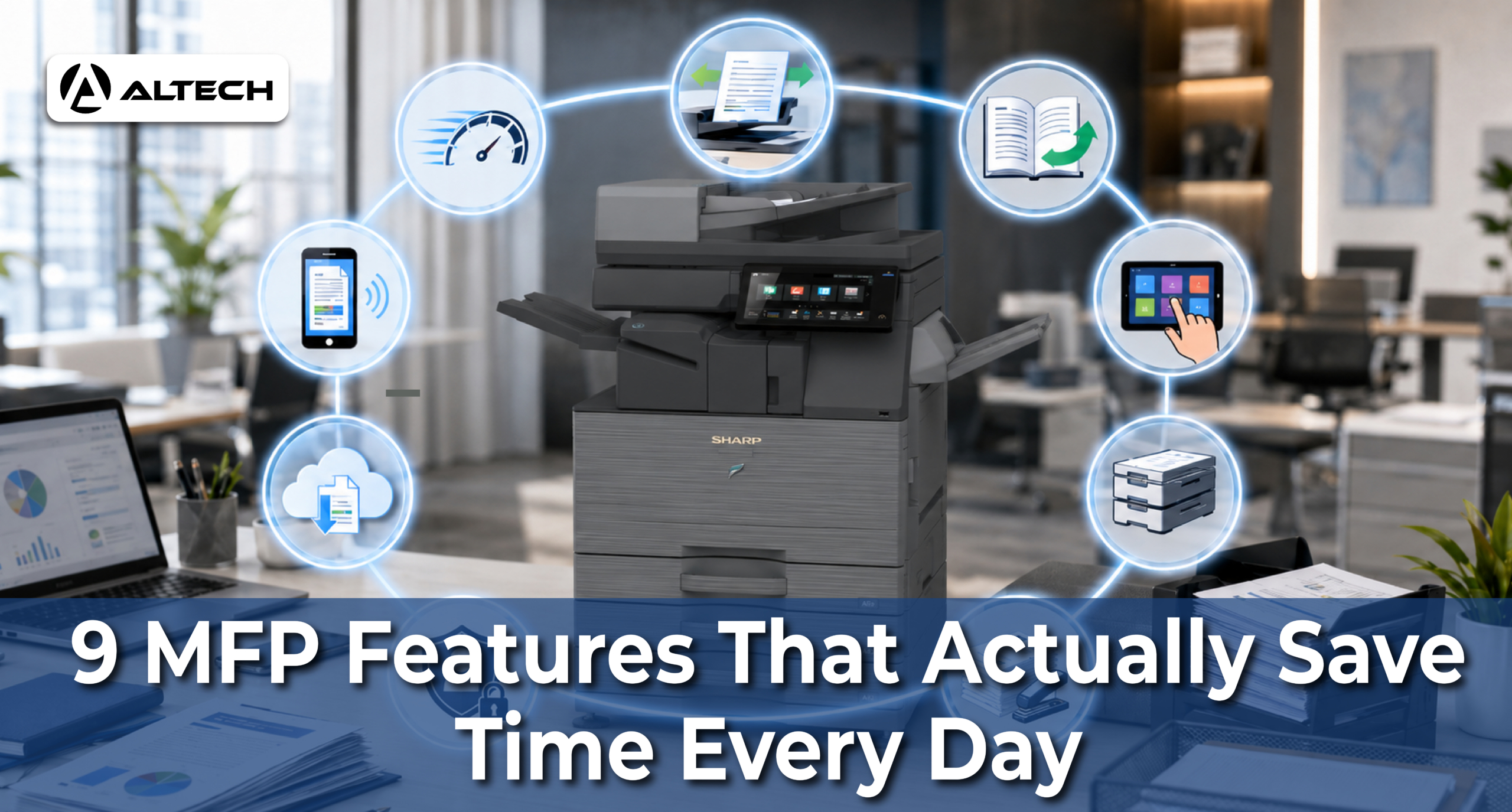
A multifunction printer, or MFP, is one machine that prints, scans, copies, and often faxes. Instead of walking between four separate devices, staff handle every document task in one place. That matters more than it sounds. The small trips and interruptions between machines quietly eat into a working day, and one device removes most of them.
Not every feature on a spec sheet earns its place, though. The nine below are the ones that genuinely save minutes in ordinary, everyday work.
1. All tasks on one device
The biggest time-saver is the simplest one. Print, copy, scan, and fax all happen on the same machine, so employees no longer queue at different devices in different rooms. They also only need to learn one system instead of several.
A few minutes saved per person per trip sounds small. Across a full team over a week, it adds up to real time that goes back into actual work rather than document errands.
2. Automatic Document Feeder (ADF)
An ADF lets you load a stack of pages and let the machine pull them through one by one. There is no need to place each sheet on the glass by hand. Load a 30-page contract, press start, and walk away.
For double-sided paperwork such as invoices and letters, a duplex ADF captures both sides in a single pass. No one has to stand at the machine flipping pages halfway through a job.
3. Double-sided printing and scanning
Duplex printing produces output on both sides of the paper automatically, and duplex scanning reads both sides in a single pass. The practical payoff is less manual handling and far fewer rescans, because you are not guessing which side carried a signature or a stamp. It also halves the paper a document needs, which means fewer refill trips to the paper tray, thinner files to store, and less time spent re-running a job because a side was missed.
4. Scan routing: scan-to-email, scan-to-folder, and scan-to-cloud
Scan-to-email sends a scanned document straight to a chosen e-mail as an attachment, without you having to return to your desk, save the file, and attach it manually. It is the simplest method and needs almost no setup, so anyone can share a signed form or receipt in seconds, though it is best suited to everyday, non-sensitive documents rather than confidential records.
For recurring workflows, scan-to-folder saves a document directly to a network drive, while scan-to-cloud sends it straight into services such as Google Drive, OneDrive, or SharePoint. This removes the tedious steps of finding, renaming, and filing each scanned file by hand, because the document lands in the right place the moment it is scanned. Teams stop shuttling paper back and forth and instead route information to where it is needed in one tap.
5. OCR and searchable PDFs
Optical Character Recognition, or OCR, reads the text inside a scanned image and turns it into a searchable, editable PDF. Instead of opening file after file to find one sentence, you search an invoice number, a client name, or a date the same way you search the web.
Scanned pages can also be edited or copied into other documents. Old memos and client sheets never need to be retyped by hand.
6. Secure release and follow-me printing
Secure release, also called follow-me or pull printing, holds a print job in a central queue until the owner walks to any enabled device and confirms their identity with a PIN, a badge, or a mobile app. A document only prints when its owner is standing there, so confidential pages never sit forgotten on a tray. Jobs that are never collected can be deleted before they print at all.
The follow-me part solves a second problem. If one printer is busy or out of paper, the job can be released at the next free device instead. Staff can send a job from a laptop and collect it at whichever machine is most convenient, even on another floor or in another building.
7. Mobile and remote printing
Modern MFPs connect wirelessly, so staff can send a document to print from a smartphone, tablet, or laptop anywhere on the premises, or even offsite, without plugging in a cable. This matters most for teams that move between rooms or travel, because a report can be sent from a phone and waiting in the tray by the time they reach the printer. It removes the old routine of copying files onto a USB stick or emailing them to a desk computer first.
8. Finishing options: stapling, hole punching, and booklet making
Many MFPs can finish documents automatically as they print, which removes the slow assembly work that eats time before meetings.
Automatic stapling binds reports, proposals, and handouts together as they come out, so no one stands at a stapler putting multi-page sets together by hand. Hole punching adds clean, consistently placed holes as pages print, ideal for documents headed straight into binders. Booklet making, also known as saddle stitching, folds and staples sheets along the spine to produce finished booklets, programmes, and brochures in one process instead of several separate steps.
The result is a stack of ready-to-hand-out documents waiting in the tray, not a loose pile someone still has to assemble.
9. One-touch shortcuts and workflow automation
Many MFPs let you save frequently used settings as one-touch shortcuts on the touchscreen. A common job, such as scanning to a shared folder or as a searchable PDF, runs with a single tap instead of a dozen menu choices .
More advanced setups go further. A document can be sent to several destinations at once, converted with OCR, and filed in the correct folder based on rules. Staff never have to rename or move files afterwards.
The takeaway
None of these features is exotic. Each one removes a small, repetitive action that quietly costs minutes every day. Together, they turn the printer from a single-purpose machine into a quiet assistant that lets people spend less time chasing paper and more time on the work that actually matters.
For a free consultation contact us at https://wa.me/971569981942 or call us at +971 56 998 1942

